Guide · Updated October 2026
How to Check Your Codex Usage Limits
Short answer: type /status in an active Codex CLI session, or open the usage dashboard at chatgpt.com/codex/settings/usage. Both show your remaining limits and when they reset. To see the burn without opening anything, pin Wburn's Codex gauge to your Windows Widgets Board.
How Codex limits work now
Codex has no subscription of its own. It's included in your ChatGPT plan and metered against that plan's allowance. The exact numbers change often (OpenAI has changed them repeatedly), so treat /status as the source of truth. The structure is stable, though:
A five-hour window
Documented for Plus and Business. It's the one that stops you mid-task. Pro currently has no five-hour limit.
A weekly limit
OpenAI says weekly limits "may also apply." When one does, it's the window that ends your week early if you front-load heavy work.
Not every message costs the same
Local messages and cloud tasks draw from the same allowance, and cloud tasks can cost more. Faster modes multiply usage (OpenAI lists Fast mode at 2.5×), and bigger models and longer tasks burn faster. Message counts don't tell you much. Percentage of window used does.
Three ways to check your usage
1. /status in the Codex CLI (official, in-session)
Inside a running Codex session, type /status to see your remaining limits and reset times. It's accurate, but it only works inside a session. Most people check it after the warning has already appeared.
2. The usage dashboard (official, in the browser)
chatgpt.com/codex/settings/usage shows your current limits for your plan. Good for a deliberate check, but it's yet another tab to keep open or remember.
3. A widget that's always there (passive)
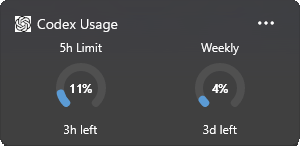
Wburn shows the same rate-limit windows Codex reports, the five-hour primary window and the weekly secondary window, as live gauges on the Windows 11 Widgets Board. Press Win + W before you kick off a long agentic task and you know whether it'll finish. If you also run Claude Code or Gemini CLI, each gets its own widget alongside.
Set up the widget (zero config)
- 1.Install Wburn from the Microsoft Store (free).
- 2.Press Win + W, click +, and pin the Codex widget.
- 3.Done. If you've signed in to the Codex CLI on this machine, Wburn reuses that sign-in (in memory only, nothing stored or sent anywhere else) and shows your real limits right away.
Frequently asked questions
How do I check my Codex usage?
Type /status in an active Codex CLI session, or open chatgpt.com/codex/settings/usage. For a passive view, Wburn shows the same windows on the Widgets Board.
What limits does Codex have?
It depends on your ChatGPT plan. OpenAI documents a five-hour limit for Plus and Business, says weekly limits may also apply, and currently lists no five-hour limit for Pro. Local and cloud usage share one allowance.
Why does my allowance run out faster some days?
Model choice, task size, cloud vs local, and speed mode all change the cost per message. Fast mode, for example, uses 2.5× the usual amount.
Does Wburn need my password or API key?
No. It reuses your existing Codex CLI sign-in, in memory only. No telemetry, no credential storage.
Related: How to check Claude Code usage limits · ccusage alternative for Windows · What are Windows widgets?
See your Codex limits before they see you
Live Codex usage gauges in your Windows Widgets. Free, zero config.
