How-To · Updated July 2026
How to Add CPU, GPU & RAM Widgets to Windows 11
Short answer: install the free Witals app from the Microsoft Store, press Win + W to open the Widgets Board, click +, and pin the CPU, GPU, Memory, and Network widgets. Windows 11 no longer ships system widgets of its own — the official ones were retired with Dev Home in May 2025.
Does Windows 11 have built-in system widgets?
It used to. Microsoft's Dev Home app added official CPU, GPU, Memory, and Network widgets to the Widgets Board in 2023. Dev Home was deprecated in May 2025, and the widgets went with it — so most older tutorials you'll find describe an app you can no longer use. (Full story: Dev Home widgets alternative.)
What remains built in: Task Manager (Ctrl+Shift+Esc → Performance) for a full monitoring window, and the Widgets Board itself — which any Store app can publish widgets to. That's where Witals comes in.
Add the widgets, step by step
Total time: about 2 minutes.
Install Witals (free)
Grab Witals from the Microsoft Store. No account, no settings screen, no background service to configure.
Open the Widgets Board
Press Win + W, click the weather icon in the taskbar corner, or swipe from the left edge on touch devices.
Pin CPU, GPU, Memory, or Network
Click the + (Add widgets) button in the top-right of the board. You'll see the four Witals widgets in the picker — add the ones you want.
Resize to taste
Each widget comes in small and medium. Small is built for a glance — one big number, one live supporting reading, and a sparkline. Medium adds the labelled rows: process count and uptime on CPU, committed and cached on Memory, VRAM on GPU.
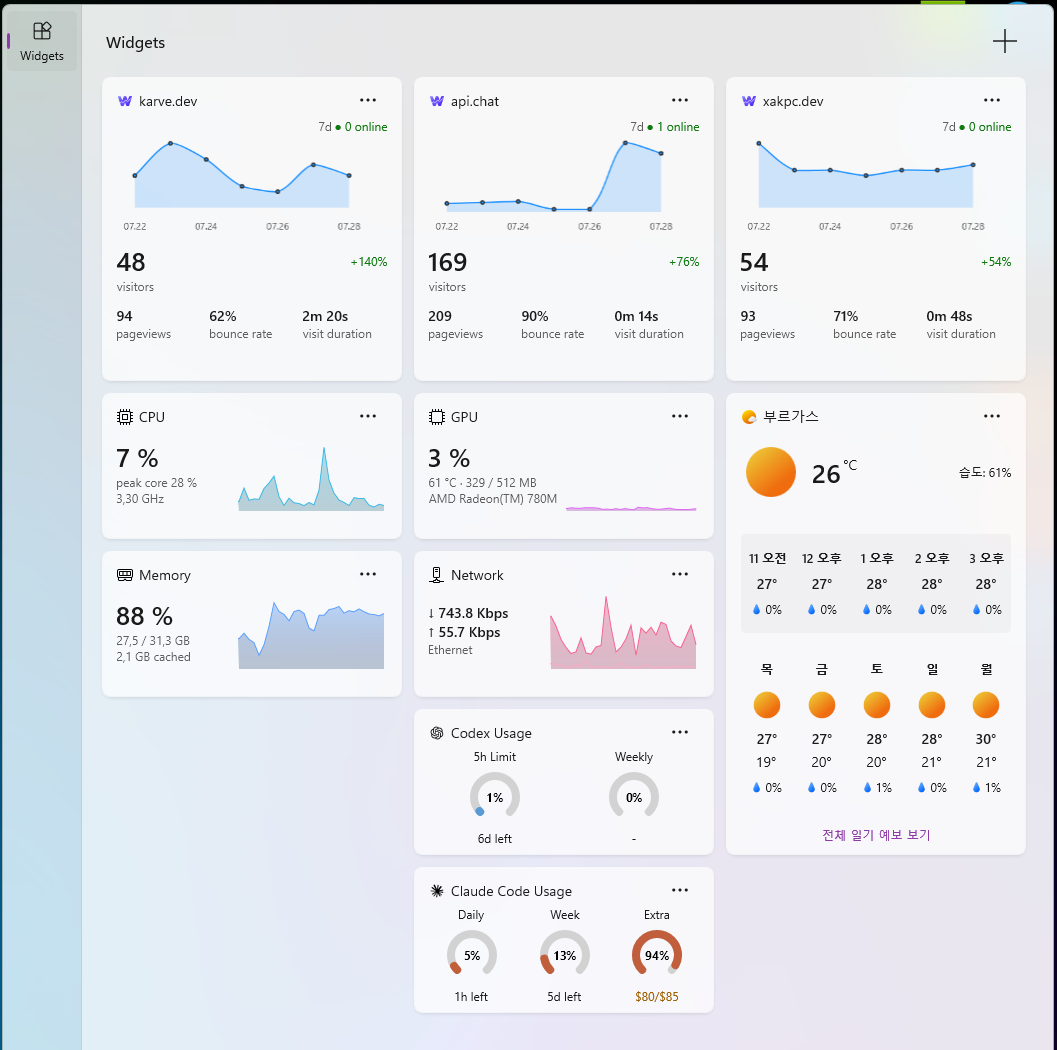
What you can monitor
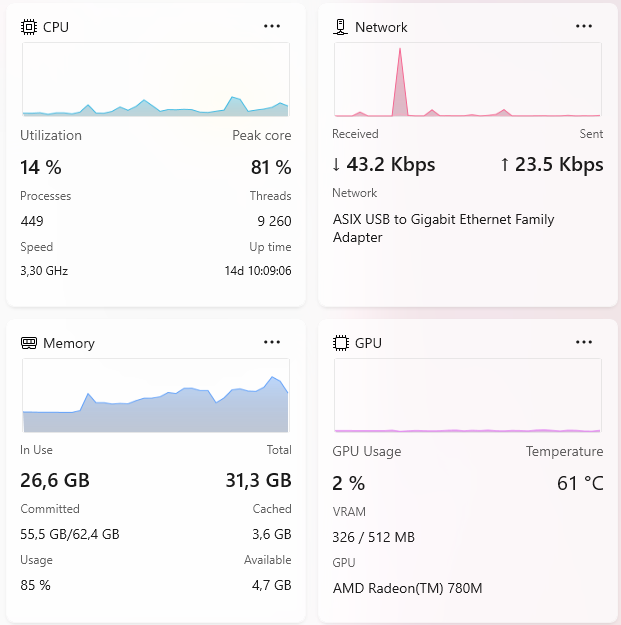
CPU widget
Utilization and temperature, plus the load on the busiest single core — the number overall usage hides, since one saturated thread reads about 10% on a 16-thread machine. Medium adds process count, rated speed and uptime.
GPU widget
Utilization, temperature and dedicated VRAM, with the adapter named on the card. Utilization alone is surprisingly uninformative, so it never appears alone.
Memory (RAM) widget
In use against total — "23.6 GB" says nothing until you know the machine has 31.3 GB. Medium adds committed, cached and available.
Network widget
Download and upload with equal billing on a two-series chart, named the way you name the connection — "Wi-Fi", "Ethernet" — rather than by its hardware string.
Frequently asked questions
Does Windows 11 have built-in CPU and GPU widgets?
Not anymore — the official ones shipped with Dev Home, which Microsoft deprecated in May 2025. A free Store app like Witals fills the gap.
How do I open the Widgets Board?
Win + W is the fastest way. You can also click the weather icon in the taskbar corner or swipe from the left edge on touch screens.
Can I resize the widgets?
Yes — small or medium via the widget's … menu. Medium adds the labelled detail rows the small card has no room for.
Does this need Task Manager running?
No. Witals reads Windows performance counters directly and keeps sampling whether or not the board is open, so it opens onto a full chart.
Add system widgets to your board
CPU, GPU, Memory, and Network — free, no account.
