Guide · Updated July 2026
Dev Home Is Retired. Here's How to Get Your CPU, GPU & RAM Widgets Back.
Short answer: Microsoft deprecated Dev Home in May 2025, and the CPU, GPU, Memory, and Network widgets it added to the Windows 11 Widgets Board were retired with it. The fastest replacement is Witals — a free Microsoft Store app that puts the same four system widgets back on your board.
What happened to the Dev Home system widgets?
In 2023, Microsoft shipped Dev Home — a developer dashboard app that, among other things, added system monitoring widgets (CPU, GPU, Memory, Network) to the Windows 11 Widgets Board. For two years it was the answer every "how to add a CPU widget on Windows 11" article gave.
In January 2025 Microsoft announced Dev Home's deprecation, and starting May 2025 the app is no longer supported. The system widgets were not migrated into Windows itself — they simply went away. If you relied on them, your Widgets Board lost its monitoring surface.
The gap this left: Windows 11 has no built-in way to pin live CPU, GPU, or RAM stats to the Widgets Board. Task Manager works, but it's a full window you have to keep open — not a glance.
Your options after Dev Home
Task Manager (built-in)
Ctrl+Shift+Esc → Performance tab. Accurate, but it's a window you have to manage, not an at-a-glance widget.
Legacy gadget packs
Third-party revivals of Windows 7 desktop gadgets exist, but they run as separate always-on apps, look dated, and don't integrate with the Widgets Board.
Witals — native widgets, same board (recommended)
A free Store app built on the same native widget platform Dev Home used. CPU, GPU, Memory, and Network widgets live exactly where the old ones did — one Win+W away.
Get the widgets back in 2 minutes
Three steps, no configuration, no account.
Install Witals from the Microsoft Store
It's free, with no account or sign-in. Get Witals →
Open the Widgets Board and pin your widgets
Press Win + W, click the + button in the top-right corner, and add CPU, GPU, Memory, or Network — the same flow the Dev Home widgets used.
Resize and go
Each widget comes in small and medium. Sampling runs continuously, so the board opens onto live readings and a full chart rather than a blank one filling in.
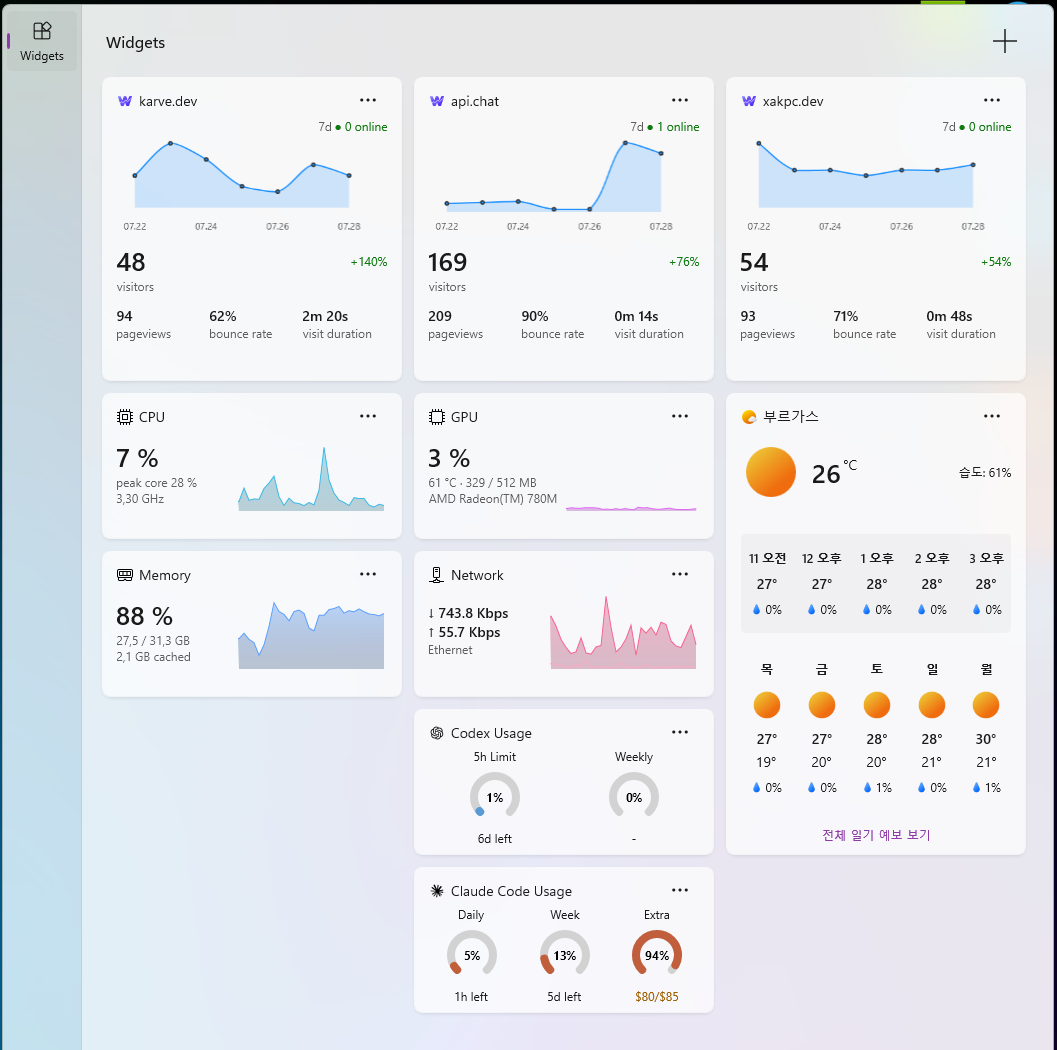
What each widget shows
CPU
Utilization and temperature, plus peak core load — the piece Task Manager buries, since one saturated thread reads about 10% overall on a 16-thread machine.
GPU
Utilization, temperature and dedicated VRAM, with the adapter named on the card.
Memory
In use against total, because a used figure alone says nothing. Medium adds committed, cached and available.
Network
Download and upload with equal billing on a two-series chart, named the way you name the connection — "Wi-Fi", "Ethernet".
Frequently asked questions
Why were the CPU and GPU widgets removed from Windows 11?
They shipped with Microsoft's Dev Home app, not Windows itself. When Dev Home was deprecated in May 2025, its widgets were retired with it.
Is there a free replacement?
Yes — Witals is completely free on the Microsoft Store and adds the same four widget types back to the Widgets Board.
Does it work on Windows 10?
No. The Widgets Board is a Windows 11 feature, so Witals requires Windows 11 21H2 (build 22000) or later.
Will performance widgets slow down my PC?
No meaningful impact — Witals reads the same lightweight performance counters Task Manager uses, and sampling all four sources costs roughly 4 ms. Drawing a card only happens while that widget is on screen.
Get your system widgets back
Free. No account. Installs in under a minute.
